
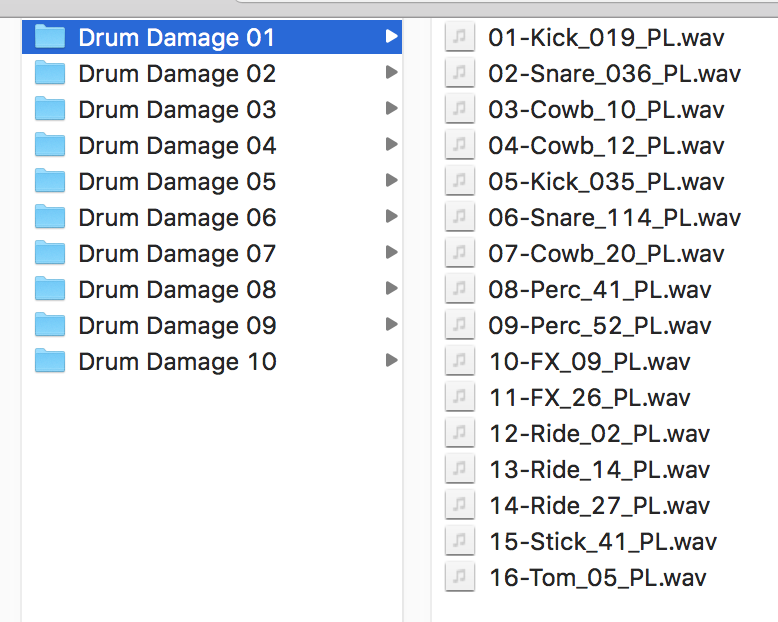
You can transfer your kits to your iPhone or iPad in a few different ways.
- AirDrop (Mac): right-click the kits folder, choose Share, then AirDrop, and pick your device. Keep the device unlocked and nearby. The folder shows up in the Downloads folder of the Files app.
- Finder (Mac): connect the device with a cable and use the Finder to transfer files.
- Cloud storage: put the folder in iCloud Drive, Dropbox or a similar service, and open it from the Files app.
Make sure the kits are on your device #
AirDrop puts the folder in the Downloads folder of iCloud Drive, not the Downloads folder under On My iPhone or On My iPad. The files are usually still stored on the device, but if you see a cloud icon on them, they aren’t. Press and hold the folder and choose Download All, so your apps can open the files without asking to download them first.
To keep your kits somewhere permanent, press and hold the folder, choose Move, and put it in a folder of your own under On My iPhone or On My iPad (for example, a new folder called Samples). Keep it out of the folders that belong to your apps, since the apps use those for their own files.
Each iOS app imports files a little differently. If an app won’t import the files, check its own manual for how it imports.