
How to Make MPC Expansions
An MPC Expansion is a bundle of MPC kits packaged together with cover artwork, so they show up neatly in the Expansion browser on your Akai MPC, just like the official expansion packs. This guide walks through how to make your own MPC Expansions using Akai’s free MPC Expansion Builder app, how to load them into the MPC software, and how to transfer them onto your MPC hardware.
You can use kits you built by hand, or let Kit Maker turn your drum sample packs and Maschine Expansions into ready-made MPC kits automatically, then bundle them into an Expansion with the steps below.
What you’ll need
• The free MPC Expansion Builder app (from Akai, installs alongside the MPC software).
• Some MPC kits: your own, or made automatically with Kit Maker.
• A square artwork image for the cover.
• The MPC desktop software (MPC 2 or 3), needed to transfer Expansions to hardware.
What is an MPC Expansion?
On the MPC, an Expansion is a packaged sound library: a set of programs (kits) plus artwork and metadata, saved as a single .xpn file. Loaded onto your MPC, it appears in the dedicated Expansion browser with its cover image, so your kits are easy to find and load into any project. Making your own Expansion is just two ingredients (kits + artwork) bundled with the Expansion Builder.
The MPC Expansion Builder does not make kits for you. It only bundles kits you already have. If you don’t want to build kits by hand, Kit Maker creates the MPC kits automatically from any sample pack or Maschine Expansion; then you bundle them here.
Step 1: Get the free MPC Expansion Builder app
The MPC Expansion Builder is a free desktop app from Akai. It’s included as an option when you install the MPC software, so you may already have it. If not, Akai has a help article on downloading and installing it.
Step 2: Get your MPC kits ready
You’ll need a folder of MPC kits to bundle. Build them yourself, or let Kit Maker do it automatically. Drag in a drum sample pack or a Native Instruments Maschine Expansion, and Kit Maker turns it into a folder of organized, labeled MPC kits. Either way, keep all the kits for one Expansion in a single folder.
Step 3: Bundle your kits into an Expansion
In the MPC Expansion Builder:
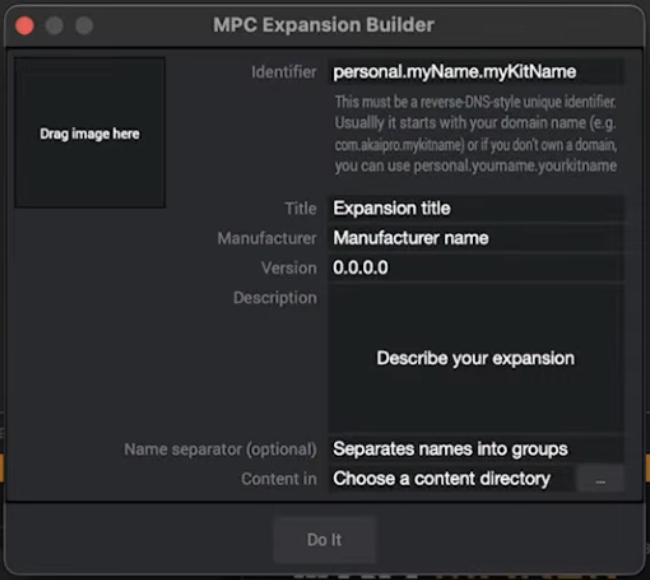
- Drag your kits folder into the content section.
- Drag your artwork image into the image section.
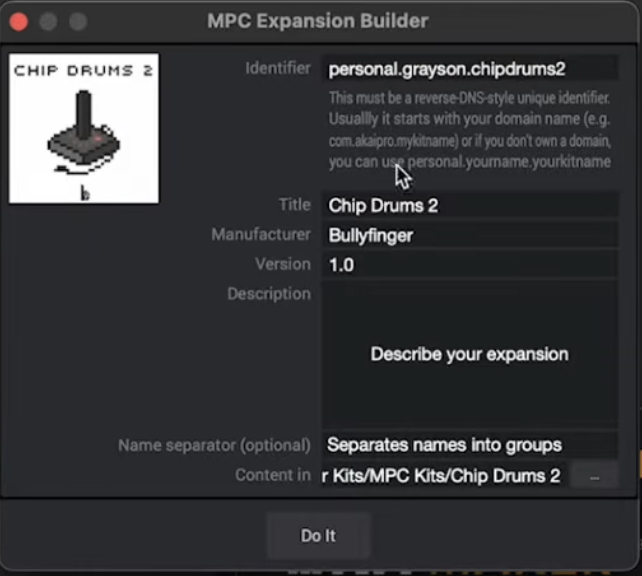
- Fill in the title, manufacturer, version, and an optional description.
- Enter a unique identifier. The app suggests the format
personal.yourname.yourkitname. - Click Do It. When it asks about adding demo sequences, you can skip that and click Create.
- Choose a name and save. The app creates a .xpn file (the MPC Expansion format).
Tip: the unique identifier just has to be unique to you. personal.yourname.packname works fine. It keeps your Expansion from clashing with others on the MPC.
Step 4: Import the Expansion into the MPC software
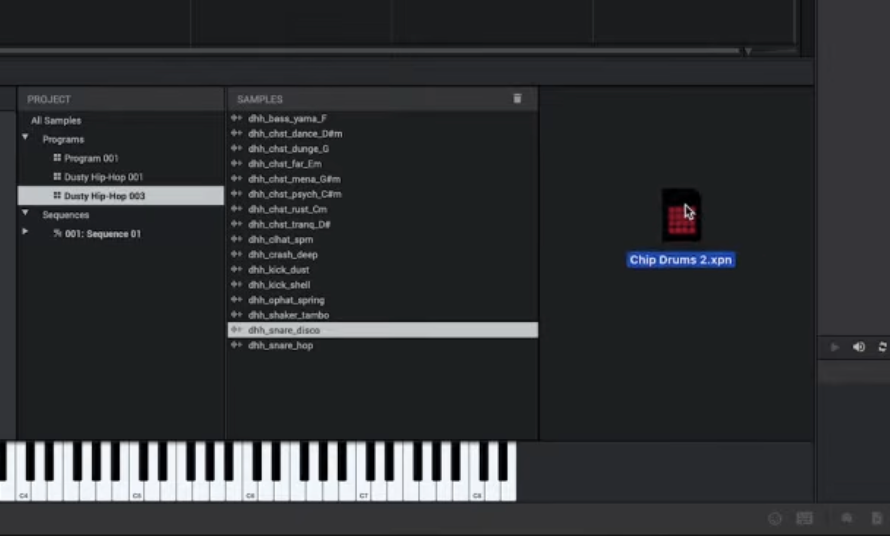
Open the MPC desktop software and drag your new .xpn file onto it, then choose Expansion pack → Import. Your Expansion now appears in the list of expansions, with all its programs (kits) inside. If it doesn’t show up right away, go to View → Browser → Expansion Browser.
Step 5: Transfer the Expansion to your MPC hardware
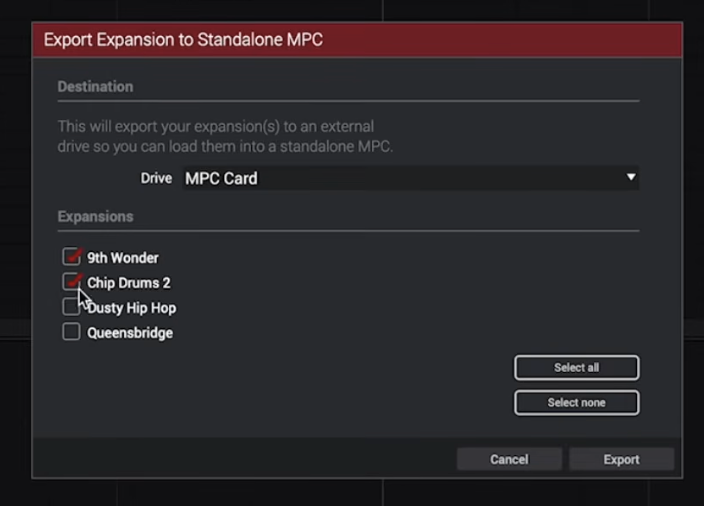
Unlike individual kits, you can’t just copy .xpn files straight onto your MPC. Expansions have to be exported through the MPC desktop software, but it’s quick.
In the MPC software, go to File → Export → Expansion. Choose a destination: an SD card, or your MPC directly over USB in controller mode. Check the expansions you want to transfer and click Export. Then eject the SD card (or disconnect) and move over to your MPC.
Step 6: Load your Expansion on the MPC
Insert the SD card into your MPC, open the Expansions browser, and your Expansion shows up with its artwork. Open it, and all the kits are there: already labeled, with previews working, ready to load straight into your project.
Skip the kit-building. The Expansion Builder bundles kits. It doesn’t make them. Kit Maker turns your sample packs and Maschine Expansions into finished MPC kits automatically, so you can go from a pile of samples to a polished MPC Expansion in minutes. See Kit Maker for MPC →
FAQ
What file format is an MPC Expansion?
An MPC Expansion is a .xpn file: a bundle of MPC programs (kits) plus artwork and metadata. Individual kits use the .xpm program format; an Expansion packages a whole set of them together.
Where do I get the MPC Expansion Builder?
It’s a free desktop app from Akai, included as an option with the MPC software install. If you don’t have it, Akai has a help article on downloading and installing it.
Does the Expansion Builder make the kits for me?
No. It only bundles kits you already have with artwork. To create the kits themselves, build them by hand or use Kit Maker, which makes MPC kits automatically from sample packs and Maschine Expansions.
Can I copy the .xpn file straight onto my MPC?
No. Unlike individual kits, Expansions have to be exported through the MPC desktop software (File → Export → Expansion) to an SD card or over USB. You can’t just drag the .xpn onto the MPC.
Can I make an Expansion from my Maschine Expansions?
Yes. Kit Maker converts Native Instruments Maschine Expansions into MPC kits; then you bundle those kits into an MPC Expansion with the steps above.