
Drag folders onto the Import panel, or use the Sample Pack Importer.
Sample Pack Importer #
Dragging folders in works fine, but once you have a lot of packs the Sample Pack Importer is faster. It scans the folders where you keep your packs and lists everything it finds.
Open it with the Sample Pack Importer button inside the Import panel, under the Large Files and Keywords buttons. It opens over the main window and has a tab for each source:
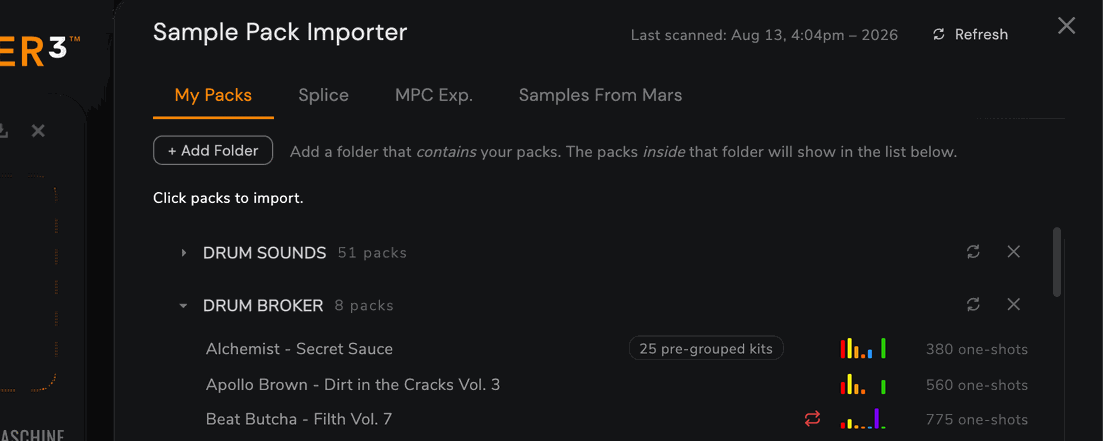
- My Packs. Your own pack folders. Click + Add Folder to add as many as you like; each becomes its own collapsible group.
- Splice. Packs downloaded through Splice. Kit Maker finds your Splice folder on its own; if it picks the wrong one, choose it yourself.
- MPC Exp. Your MPC Expansions. Kit Maker checks the standard Akai locations and merges the results if you keep Expansions in more than one place.
- Samples From Mars. Choose the folder where you keep these packs.
On the My Packs and Splice tabs, each row shows the pack name, a colored bar for each category it contains, and its sample count, so you can tell whether a pack has the drums to build kits. Hover a row for the full breakdown. Rows on the MPC Exp. and Samples From Mars tabs show a kit count instead. Some rows carry a tag: no drums or N pre-grouped kits. Packs with nothing usable are dimmed rather than hidden, so you know they were scanned.
Click a pack to add it. Click Refresh after downloading new packs, and click Done when you’re finished. The importer only reads your folders: nothing is copied, moved or renamed.