
Settings for individual export formats. Only the formats with options appear here.
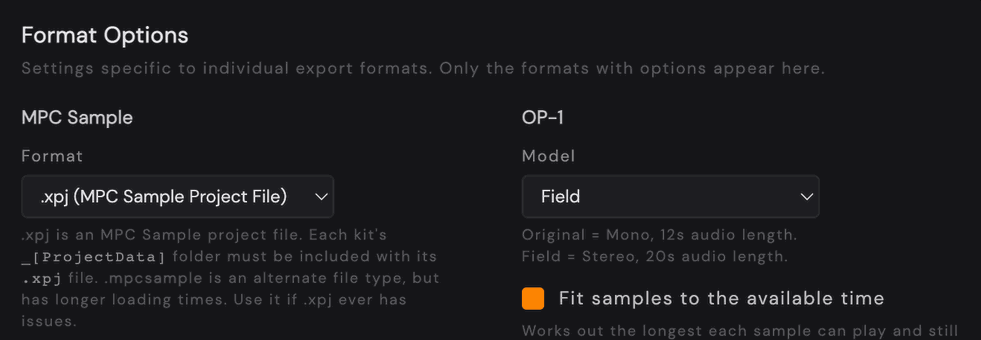
MPC Sample #
Choose which kind of file Kit Maker builds for the MPC Sample. The dropdown is labelled Format.
.xpj (MPC Sample Project File) is the default and the one to use. Each kit is a single .xpj file with a matching _[ProjectData] folder. The two belong together, so always copy both to your card.
.mpcsample (MPC Sample File) is an alternate file type that gives each kit its own folder. It works, but kits take noticeably longer to load on the device. Use it only if you run into trouble with .xpj.
Both file types are built from the same kits, so the sounds and pad layout are identical either way.
Ableton Live #
Choose the Ableton Kit Version: Simpler (the default), Drum Sampler, or Simpler (Live 10). Ableton Sample Location is Portable (with preset) by default, or In User Library (legacy). Tag kits with “Kit Maker” label is also here. For the details and Push usage, see Ableton Live.
Ableton Move & Note #
These settings apply when exporting kits for Ableton Move / Note. For the full rundown of the two ways to get kits into Ableton Note (and how to transfer them), see Ableton Move & Ableton Note.
Include Expansion Name in Kits (Maschine Mode) #
If you are making kits with the “Ableton Move & Note” format (the recommended format, which makes .ablpresetbundle files that work in both Ableton Move and Ableton Note), you can add the Expansion Name to the front of the names of the kits. This applies to Maschine Mode only.
This is useful because Ableton Note lists all your kits together in one folder. Prefixing the Expansion or pack name (for example, “Backyard Jams – Groove Kit”) visually groups a pack’s kits together in the list.
Alternatively, you can use the separate “Ableton Note (folders)” format, which has the benefit of organizing the kits into folders by Sample Pack or Expansion.
However, this method is a more complex process to transfer the files and may be tricky for some users.
See Ableton Note (folders) format (advanced).
Serato #
- Reverse Pad Order. Flips the pad rows to match your Serato setup. It’s on by default. Serato also has its own Reverse Pad Order option (in Serato’s General Preferences), and that one reverses kits you’ve already loaded as well. Use one or the other, not both, or the rows flip back.
OP-1 #
These settings apply when exporting kits for the Teenage Engineering OP-1. Each OP-1 kit is a single sliced AIFF rather than a folder of samples, so the whole kit shares one pool of audio time, and these options decide how that time is spent.
Model #
Choose the OP-1 you own. The original OP-1 takes a mono kit of up to 12 seconds. The OP-1 Field takes a stereo kit of up to 20 seconds. Kit Maker matches the channel count and the time limit to whichever you pick, so it is worth setting this before your first export.
The model also decides how many kits your OP-1 can hold and how kits are named. The original OP-1 holds far fewer kits and gets names shortened to 10 characters. See Preset limits.
You are asked for your model the first time you turn on the OP-1 format, and you can change it here at any time.
Fit Samples to the Available Time #
On by default. Kit Maker trims only what it has to so the whole kit fits your model’s time limit. Short sounds like kicks, snares, and hats almost always play in full, and only the longest sounds get shortened.
Leave this on unless you want a specific sample length. It makes the most of the time your OP-1 has, and it guarantees every pad gets audio.
Max Sample Length (seconds) #
Available when Fit Samples to the Available Time is off. The number field is greyed out while Fit is on. Every sample is trimmed to this length before the kit is stitched together, with a short fade so the cut is not audible.
Kit Maker will still shorten samples further if the kit would not otherwise fit, so no pad is ever left silent.
16-Slice WAV #
- Use Equal Slices. Makes all 16 segments the same length. Keep it on if your sampler chops files into 16 equal parts. Turn it off for samplers that find slices by transients and gaps of silence (like the PO-33).
- Max segment length (seconds). Each sample is trimmed to this length.
- Add silence between slices. Inserts a short silence after each sound so transient-detecting samplers can find the boundaries. Samples are trimmed slightly to make room.
Bitwig #
- Use ADSR Envelope. By default Bitwig pads play one-shot, so each sample plays to the end. Turn this on to play pads through the amp envelope instead, so you can shape them with the envelope and your MIDI controls.
Logic Pro #
- Keyboard Mapping. Chromatic moves up a semitone per pad, so every key plays a different sound with nothing skipped. Logic GM Layout uses the note positions built into Drum Machine Designer, which leaves gaps in the first two octaves unless a kit uses all 3 banks. The second dropdown sets which key pad 1 starts on (Chromatic only): C0 (24), C1 (36) by default, C2 (48), C3 (60) or C4 (72). It’s greyed out when Logic GM Layout is selected.
If you see empty keys when playing a Logic kit from your keyboard, this setting is why. Switch to Chromatic.
Audio Previews #
Kit Maker can add an audio preview to each kit so you can hear it before loading it. On MPC, the preview plays when you select a kit. In Ableton Live, previews are saved as files next to each kit, and you click the preview itself to hear it (Ableton doesn’t play them when you click the kit).
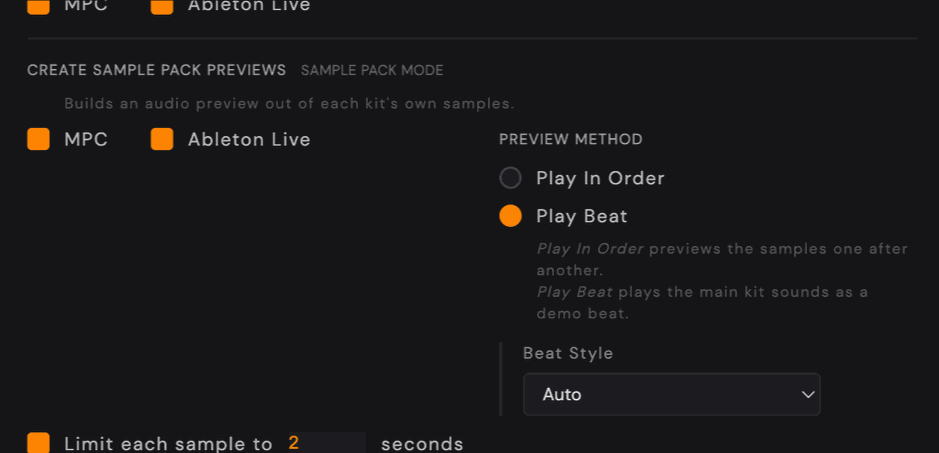
- Include Maschine Previews (Maschine Mode). Copies the preview that ships with each Expansion kit, so each kit keeps its original preview. Choose MPC, Ableton Live or both.
- Create Sample Pack Previews (Sample Pack Mode). Builds a preview out of each kit’s own samples, for MPC, Ableton Live or both. On by default.
- Preview Method. Play In Order plays the samples one after another. Play Beat plays the main kit sounds as a short demo beat, in the Beat Style you pick: Auto, Boom Bap, House or Trap.
- Limit each sample to … seconds. Trims long sounds with a quick fade, keeping the feel of each sound while keeping the preview short.
- Ableton Preview Files. Save previews Alongside Kits, next to each
.adgwhere they’re easy to click, or together In a Folder called[Previews].