Samples Per Kit
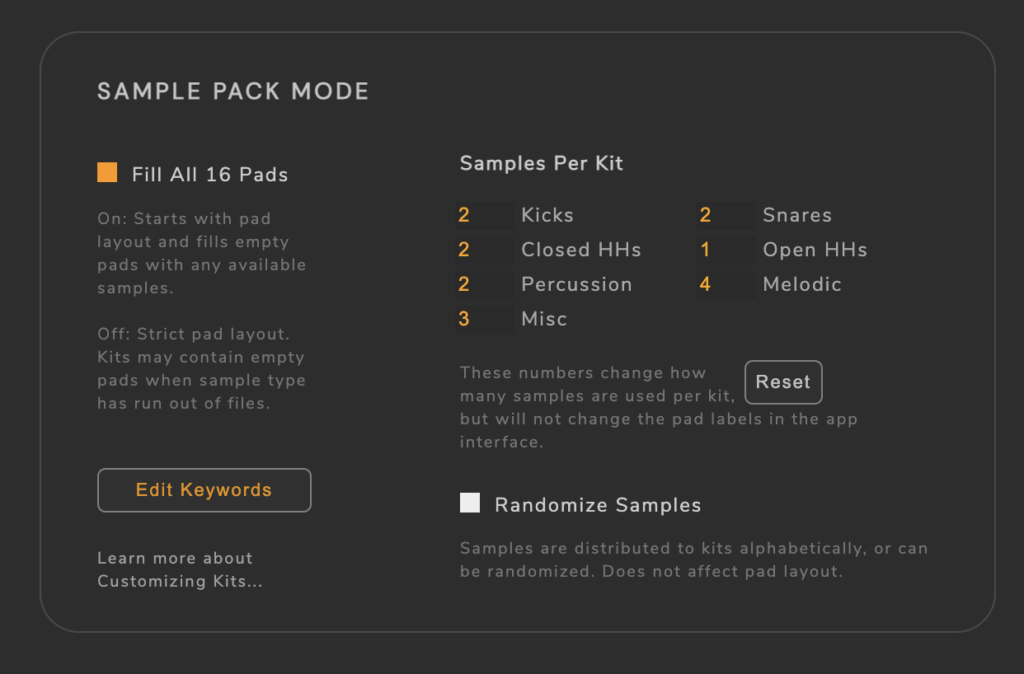
I recommend that most people stick to the default setup, but it is possible to experiment with the number of sample types assigned to each kit. For example, raising the amount of Kick samples from 2 per kit, to 4 per kit. The more you change these numbers, the less likely they will match up with the default pad labels. Given the vast possibilities of user-set sample amounts, the kits will come out less predictably.
Randomize Samples
By default, samples are filled alphabetically. For example a file named “A Kick.wav” will be used before “B Kick.wav.”
With Randomize Samples enabled, the samples for each category are randomized. This does not affect the pad layouts.
This option is useful when several samples are named similarly. For example, you may have several samples named something like “Bass 1.wav” all the way up to “Bass 12.wav”. Normally, Kit Maker will assign samples alphabetically. This would mean that all your “Bass” titled samples would be lumped together in a few kits, instead of having your Bass samples spread out across all your kits. The randomization option creates more diverse individual kits by avoiding grouping similar file names together.
Fill All 16 Pads – On
This option is explained well in the tutorial video at the top of this page.
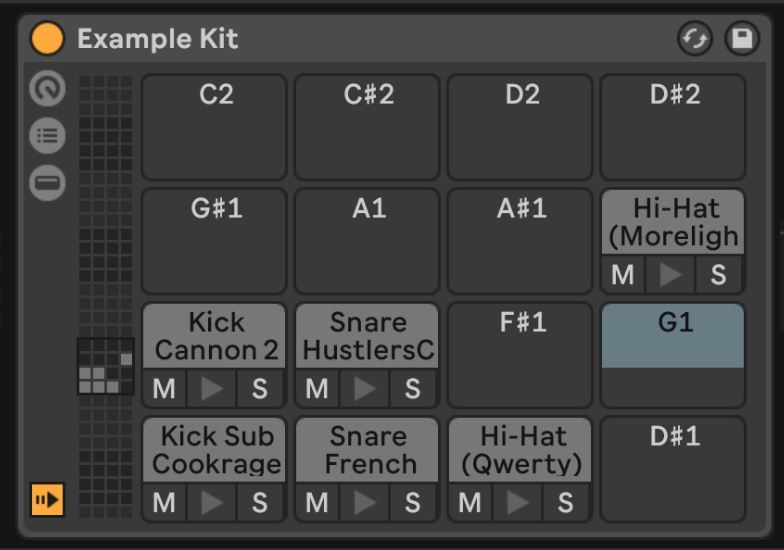
By default, the “Fill All 16 Pads” option (found in Preferences) is enabled. This makes sure that every kit has 16 samples. Without this on, sample files will only fill pads of their own category (ie kick samples filling kick pads). This essentially combines kits that did not have enough samples (of all the categories) to fill an entire kit.
Turning the option off will result in some kits having empty pads as samples of certain categories run out. More on that below.
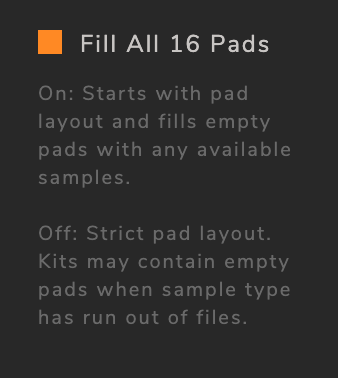
With the option ON, a pad that ran out of samples for its’ category will be filled instead of being left empty. However, because that category of sound was out of samples (for example, there were no more closed kick sounds), a different sample type will be used to fill that otherwise empty spot (perhaps a closed hi hate sample will be used, if there are extra hi hat samples in that Sample Pack).
Fill All 16 Pads – Off
The benefit of turning this option off is that there will be more kits created (although with less samples per kit) and they will follow a more strict pad layout. For example, a user may have a Sample Pack that contains only kicks, snares and hi-hats. If they are just using these samples in their pattern, and want to make the most amount of kits to swap out and try different kit sounds, they may want to turn this option off.